Split Several Audio Files at Once
Drop a whole series of recordings, set the part length once, and every file is split the same way, one after the other: a lecture course into 10-minute blocks, a season of episodes into 25 MB parts for transcription, a folder of voice memos into equal pieces. The parts come back grouped by file, with one ZIP for everything. No upload, no signup, no file size limit.
Split several filesThe button opens the splitter; choose or drop several files together and they line up under the file card. The first file of a batch is free, the rest of the list needs Pro. One file at a time: split an MP3 into equal parts.
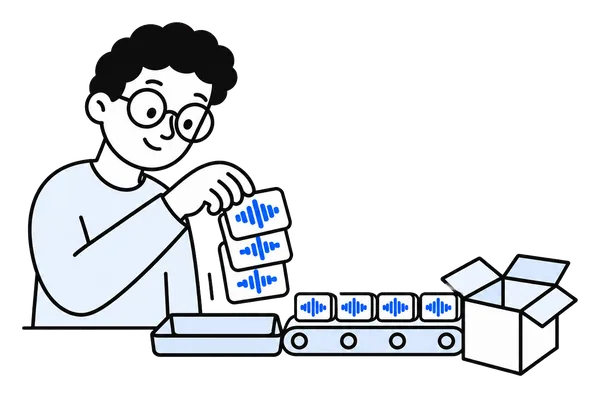
A whole series in 3 steps
Twenty lectures become a hundred ten-minute parts in one sitting. Nothing installed, nothing uploaded.
Choose or drop the files together
Select several files in the file dialog, or drop them onto the page at once. MP3, M4A, M4B, WAV, FLAC and most other formats, mixed if you like, up to 100 per batch. They line up sorted by name, so lesson 2 comes before lesson 10.
Set the length once
Minutes, seconds or MB per part, the same for every file. Quick split cuts exactly there; Smart split moves each cut to the nearest pause, file by file. The presets, 25 MB for transcription and 60 minutes for chapters, work here too.
Download grouped by file
Every file's parts appear under its name, each playable and downloadable on its own, and one button zips everything with a folder per file. WAV is free; MP3 or the original format comes with Pro.
What a batch does, exactly
The same split you know, repeated down the list.
One setting, every file
The length, the unit and Quick or Smart split apply to the whole list. A long file gets more parts than a short one; nothing is padded, and nothing is merged across files.
Grouped results, one ZIP
The parts come back under the name of the file they came from, numbered as usual. One click zips the whole batch into a single archive with a folder per file inside, named after it.
One bad file does not stop the rest
A file the browser cannot read, or one that is not audio at all, is marked in the list with the reason and the batch carries on. The summary at the end names what was skipped.
Free and Pro on this page
Splitting one file is free and stays free, so the first file of every batch is free too, exactly as if you had dropped it alone. The rest of the list is what ChunkAudio Pro is for: a 7-day pass for €4.99, a yearly plan or a lifetime licence, no account, and the batch runs through to the end with one ZIP at the finish. Without Pro the list still helps: after the first file, a button takes the next one, free, and you download each on its own. Either way nothing is uploaded; the files are read and split on your device, one after the other, and the memory of each is released before the next begins.
Cutting a section and removing pauses work on one file at a time; a batch always splits.
What people split in batches
The lists that arrive here most often.
Lecture series and courses
A semester of recordings into 10- or 15-minute blocks, every lecture the same way, each in its own folder.
Podcast back catalogues
Every episode into 25 MB parts for a transcription service, or into clip-length pieces, in one run instead of one evening per episode. See split audio for transcription.
Interview studies
Twenty interviews into parts that fit the transcription limit, each interview in its own folder so the transcripts stay apart. See splitting recorded meetings.
Voice memos and dictations
A week of memos into equal pieces, or a long dictation series into parts an assistant can take in turns.
Audiobooks in several files
A book delivered as one file per disc or per hour into even chapter lengths, the same across all files. See splitting an audiobook into chapters.
Rehearsals, sets and field recordings
A season of rehearsal tapes or a weekend of field recordings into manageable pieces, with one ZIP to archive or hand over.
Frequently asked questions
How many files can I split at once?
Up to 100 per batch. They are sorted by name with numbers in order, so lesson 2 comes before lesson 10, and files that are not audio are left out with a note. For more than 100, run a second batch.
Does every file get the same part length?
Yes. One length for the whole list, in minutes, seconds or MB per part, with Quick split or Smart split for all of them. How many parts a file gets follows its own length. For two different lengths, run two batches.
Can I mix formats in one batch?
Yes. MP3 next to M4A, WAV or FLAC is fine. The parts download as WAV for free, or as MP3 or the original format with Pro; the ZIP in the original format is offered when all files in the batch share one.
What is free, and what needs Pro?
The first file of every batch is free, like any single split: all its parts, as WAV, with no signup. The rest of the list needs ChunkAudio Pro, a 7-day pass for €4.99, a yearly plan or a lifetime licence, which also adds MP3 export, parts in their original format, pause removal for long recordings and an ad-free site. Without Pro, a button after the first file takes the next one, free, one at a time.
What does the download look like?
Under the results every file has its own group with its parts, each playable and downloadable alone. The ZIP button packs the whole batch into one archive with a folder per file, named after it, and the numbered parts inside. If the WAV parts of a large batch add up to more than the browser can zip in memory, the button says so; download the parts one by one, or with Pro the ZIP as MP3, which is far smaller.
What happens when one file cannot be read?
It is marked in the list with the reason and the others continue. The summary at the end names the files that were skipped. A download that is still finishing or a file in a cloud folder that fetches on demand are the usual causes; open it once or copy it to a local folder and run it again.
Can I drop a whole folder?
Drop the files, not the folder: a folder arrives as one unreadable item. In the file dialog, open the folder and select everything with Ctrl+A or Cmd+A, or drag the selected files onto the page together.
Does it work on a phone?
Yes, where the file picker lets you select several files at once, as the current iPhone and Android pickers do. A computer is the comfortable place for a long list of large files; a handful of memos on a phone is fine.
Are my files uploaded?
No. ChunkAudio runs entirely in your browser. The files are read and split on your own device one after the other, the memory of each is released before the next starts, and nothing goes to a server, whether you have Pro or not.
The whole list, in one go
Drop the files together, set the length once, download one ZIP. The recordings never leave your browser.
Split several files